MFA
Org Admins can enable/require the use of TOTP as a second authentication factor. This allows users to be strongly authenticated before they are allowed access to the Org.
When a user attempts to login, the password based primary authentication is performed first. Once the primary authentication is successful, the user is prompted to verify their identity with MFA using TOTP. The user needs to pass both primary and secondary authentication methods before they are allowed access.
Note: TOTP-based MFA applies only to non-SSO users. Users authenticated via SSO (e.g., SAML/OIDC) rely on MFA configured at the Identity Provider (IdP) level. TOTP-based MFA enrollment and verification are not applicable for SSO users.
Supported Authenticators
ANY TOTP based Authenticator will work for MFA.
There are several authenticators available in the market with varying degrees of sophistication. We recommend that users select an authenticator that also supports the following capabilities on top of basic TOTP support. These capabilities are critical for end users especially when their phone has been stolen or broken.
- Multiple Device Support
- FaceID/TouchID protected access to TOTP app
- Cloud Backup and Recovery
Some illustrative examples of TOTP Authenticator apps are listed below:
Advanced Capabilities
Basic Capabilities
- Google Authenticator
- Microsoft Authenticator
- Okta Verify
Enabling MFA
MFA is an Org-wide configuration that can be enabled or disabled only by Org Admins. When enabled, all non-SSO users in the Org are required to enroll in MFA during their next login.
Note: MFA enforcement using TOTP applies only to non-SSO users. SSO users continue to authenticate through their configured Identity Provider, including any MFA policies defined there.
To enable MFA:
- Navigate to the Multi-Factor Authentication (MFA) settings.
- Toggle the MFA option from Disabled to Enabled.
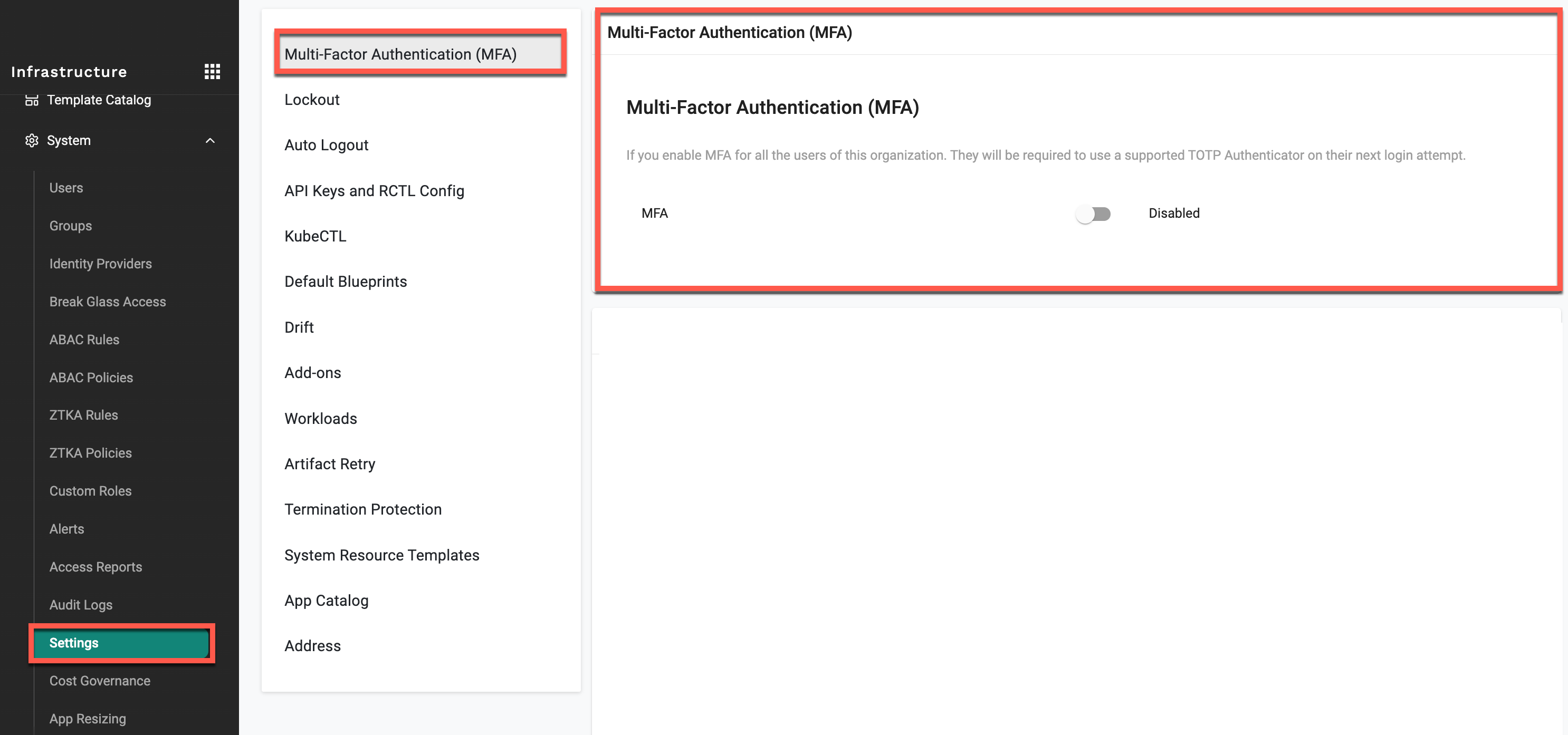
When enabling MFA, a confirmation dialog is displayed with the following options:
- Invalidate all active sessions: Logs out all users from existing sessions across devices and requires them to log in again.
- Keep existing sessions: Allows currently active sessions to remain valid until they expire.
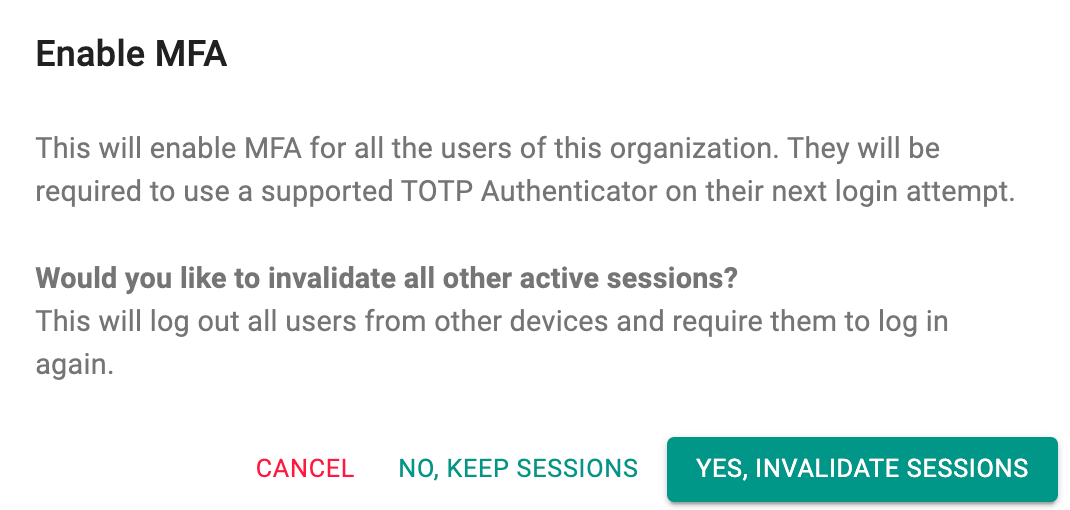
Select one of the following:
- YES, INVALIDATE SESSIONS – Enables MFA and logs out all users.
- NO, KEEP SESSIONS – Enables MFA without interrupting active sessions.
- CANCEL – Aborts the operation.
Note
The admin enabling MFA is also required to enroll in MFA if not already configured.
Disabling MFA
Org Admins in an Org can disable MFA for all users in their Org. This action can be performed only if MFA was previously enabled.
When disabling MFA, an OTP is sent to the admin’s registered email address. Enter the 6-digit OTP in the dialog to complete the action.
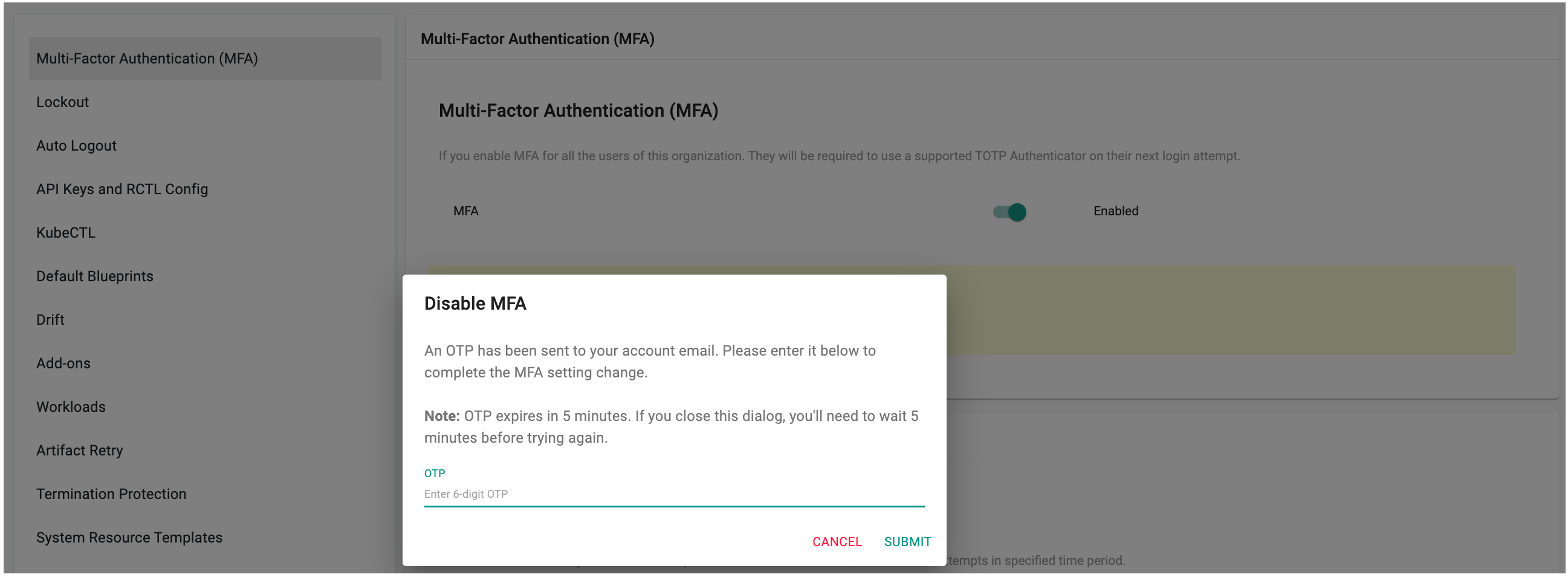
Note: The OTP is valid for 5 minutes. If the dialog is closed or the OTP expires, a new attempt is required to disable MFA.
MFA Enrollment
If the user does not yet have a TOTP associated with their account (i.e. have not completed enrollment), they will be required to enroll an authenticator after passing primary authentication.
A QR code containing an automatically generated key will be presented to the user to be scanned by their TOTP Authentication App.
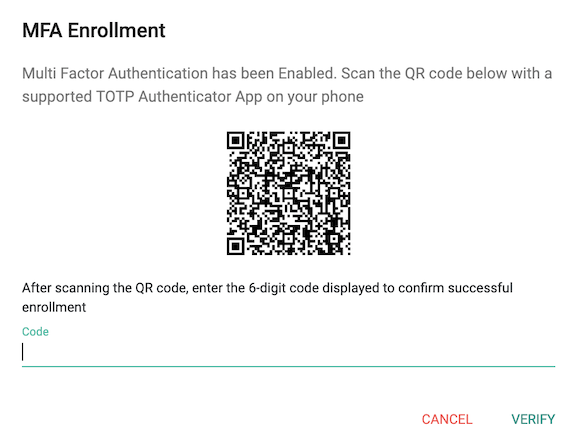
Enrollment is completed once the user enters the 6-digit code generated by their authenticator app.
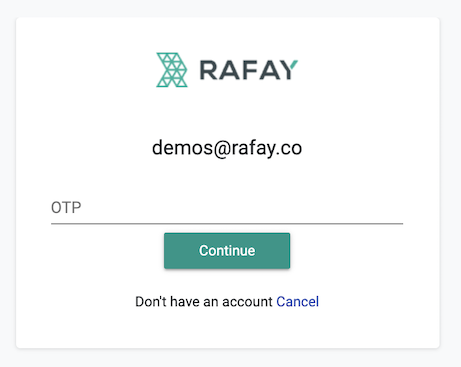
The next time the enrolled user attempts to login into their Org, they will be required to type in the OTP code after they successfully login with their username and password.
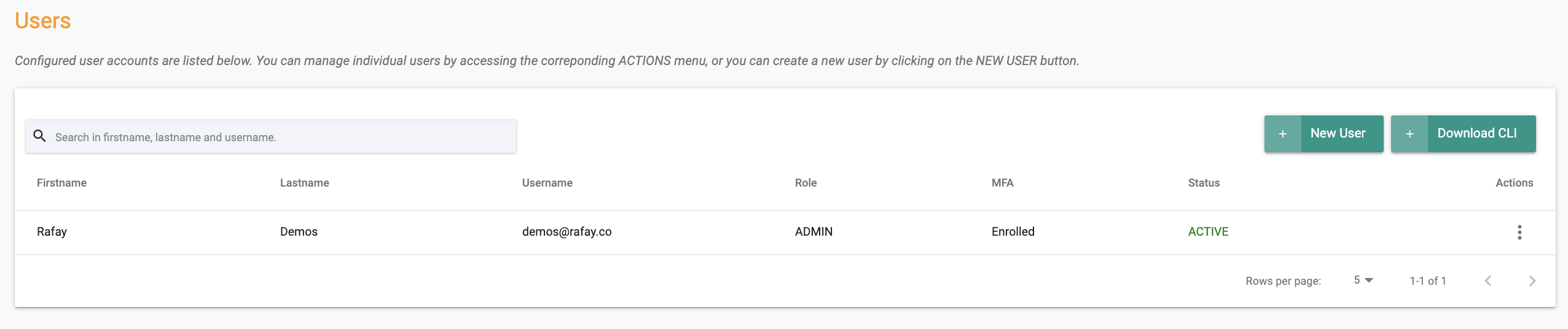
Admins can check MFA enrollment status for users in their Org by clicking on Users in the left panel. The MFA enrollment status is displayed in the column called MFA. The status can either be "Enrolled or Not Enrolled".
Reset MFA
If the user has either "lost" their phone with the TOTP authenticator app OR has a new phone with a new TOTP authenticator app, they may be unable to access the Web Console. When required, Org Admins can "Reset MFA" for a specific user. This forces the user to enroll into MFA again with their new phone/authenticator app.
- Navigate to System -> Users
- Click on "Reset MFA" for identified user