IP Whitelisting
IP-Based Access Controls for Console and API
The platform provides administrators with the ability to restrict access to the UI console and API endpoints by specifying allowed IP addresses or subnets. This capability enhances security by ensuring that only users connecting from approved network locations can access the organization and its associated resources.
Access Controls by User Type
-
Local and Automation Users:
The IP whitelisting feature built into the platform is primarily designed to control access for local and automation user accounts. By restricting access to known IPs, organizations can reduce the risk of unauthorized usage from untrusted networks. -
Identity Provider (IDP) Users:
For users authenticated via Identity Provider (IDP), it is recommended to leverage access control features offered by the IDP itself. These may include IP restrictions, device trust, and geofencing, depending on the provider’s capabilities. This ensures that security policies are enforced consistently and centrally for federated users.
How to Configure IP Restrictions
- Sign in to the console and navigate to System → Settings.
- Enter the list of allowed IP addresses or CIDR subnets you wish to permit.
- Click Save to apply the access restrictions.
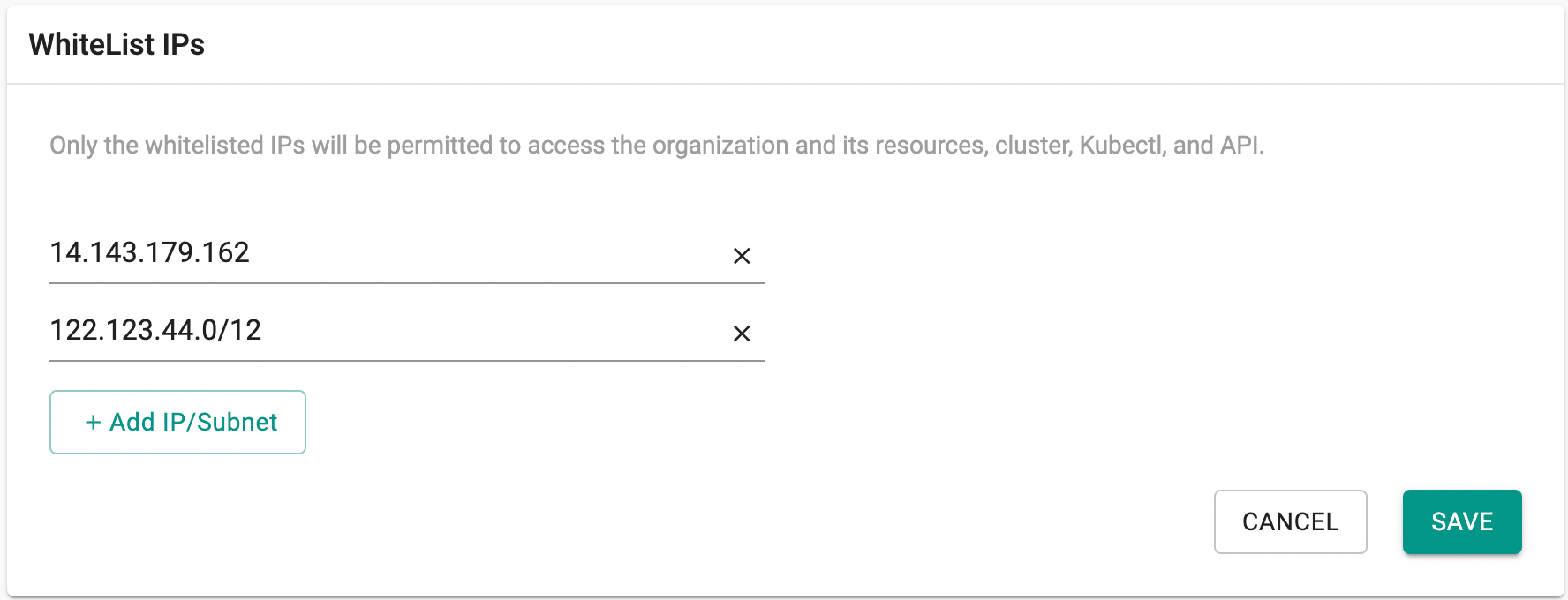
Once saved, only the specified IPs or ranges will be allowed to access the organization’s resources.
⚠️ Important: Any connection attempt from an IP address not included in the allow list will be denied access, both at the UI and API levels.
Note: Only users with the Org Admin role can configure these settings.
This feature is disabled by default for all organizations. To enable it, please contact Customer Support.
Managing IP Whitelisting Using RCTL
Previously, IP whitelisting was only configurable through the console UI. This release adds RCTL support, enabling administrators to create, update, retrieve, and delete whitelisted IP addresses or CIDR ranges programmatically.
Create Whitelisted IPs
Use the following commands to add IP addresses or CIDR ranges to the allow list:
./rctl create whitelistedips 192.168.0.1 192.168.0.2 192.168.0.0/16
./rctl create wlip 192.168.0.1 192.168.0.2
./rctl create wlips 192.168.0.1 192.168.0.2
Update Whitelisted IPs
Use the following commands to update the existing list of allowed IPs:
./rctl update whitelistedips 192.168.0.1 192.168.0.2 192.168.0.0/16
./rctl update wlip 192.168.0.1 192.168.0.2
./rctl update wlips 192.168.0.1 192.168.0.2
Get Whitelisted IPs
Retrieve the currently configured IP allow list:
./rctl get whitelistedips
./rctl get wlip
./rctl get wlips
Example Output
./rctl get whitelistedips
+-----------------+
| WHITELISTED IPS |
+-----------------+
| 125.19.125.107  |
+-----------------+
| 192.168.0.0/16  |
+-----------------+
Delete Whitelisted IPs
Remove IP addresses or CIDR ranges from the allow list:
./rctl delete whitelistedips 192.168.0.1 192.168.0.2 192.168.0.0/16
./rctl delete wlip 192.168.0.1 192.168.0.2
./rctl delete wlips 192.168.0.1 192.168.0.2
⚠️ Important: Only users with the Org Admin role can manage IP whitelisting using RCTL.